Custom Pet Overlay Help
Replies

Hello! Had a question in regards to custom pet overlays.
I know the format is 200px by 200px and it needs to be png with either a white or transparent background.
My question is does anyone use procreate to do this? If so what is your method.
I’ve tried using procreate and doing a 200 x 200 canvas but it just makes it blurry and there is a lot of quality loss.
I have also tried making a bigger image and trying to resize to smaller (I’ve tried all methods, nearest neighbor, bicubic and bilinear, but no matter which one I use when it resizes to the smaller size the quality is terrible and very pixelated.
Is there a way to fix that on procreate? Or do I need to use a different program?
Does it need to be a vector image?
Any help would be greatly appreciated. Thank you 😊
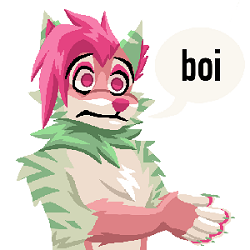
Water Malone Yeen
Image by on Twitter/X. Character belongs to me.
is your larger canvas size a multiple of 200? downscaling by odd percentages results in worse quality than reducing to 1/2, 1/3, 1/4, etc.


I just work at a larger quality and use imageresizer (dot) com. It usually does a pretty good job shrinking it down without quality loss. I haven't tried it since getting procreate though.
- it is! I’ve tried resizing more detailed drawings and less detailed drawings following those ratio guidelines and it still comes out terrible quality :(
- gave it a shot, unfortunately did not seem to work for me, the smaller image was still poor quality 🥲
Water Malone Yeen
Image by on Twitter/X. Character belongs to me.
hmm, can you share one of the fullsize images you're trying to resize? it might be easier to determine what's going on if i can see it.
- Sure thing!
This is the full size image:

And here is what the resize looks like when I resize it to 200 x 200:

Water Malone Yeen
Image by on Twitter/X. Character belongs to me.
so that one looks like the nearest neighbor setting, which will naturally result in a harshly pixellated appearance (which is why people usually use it for resizing pixel art); are you saying the bicubic and bilinear options also give similar results? when i try the bicubic setting in photoshop, it comes out looking like this:

is that better, worse, or the same as what you're getting in procreate?

Not sure if this is the problem, but I've experienced very similar results in the past so maybe this is it;
If you are not already, make sure you are resizing a flat image. Either save the image as a PNG and then open the flat PNG and resize it then OR merge all / flatten the file so it's all one layer and then resize (maybe saving a backup file with all your layers first if you're not used to this, so you don't save over all your hard work!)
If you have a large image and a ton of layers, when you resize it will resize each layer individually and the layers may not line up anymore, which can cause weird tearing or sharpness.